> ## Documentation Index
> Fetch the complete documentation index at: https://unkey.com/docs/llms.txt
> Use this file to discover all available pages before exploring further.
# Regions
> Deploy your application to multiple regions on Unkey and route traffic to the nearest location. Reduce latency with multi-region deployments.
Unkey Deploy is in public beta. To try it, open the product switcher in the
top-left of the dashboard and select **Deploy**. During beta, deployed
resources are free. We're eager for feedback, so let us know what you think
on [Discord](https://unkey.com/discord), [X](https://x.com/unkeydev), or
email [support@unkey.com](mailto:support@unkey.com).
Unkey deploys your application to one or more geographic regions. Traffic routes to the nearest healthy region automatically, reducing latency for your users.
## Available regions
| Region | Location | Provider |
| -------------- | ------------------ | -------- |
| `us-east-1` | N. Virginia, US | AWS |
| `us-west-2` | Oregon, US | AWS |
| `eu-central-1` | Frankfurt, Germany | AWS |
Need a region that isn't listed? Reach out on [Discord](https://unkey.com/discord) or email [support@unkey.com](mailto:support@unkey.com) to request it.
## Configure regions
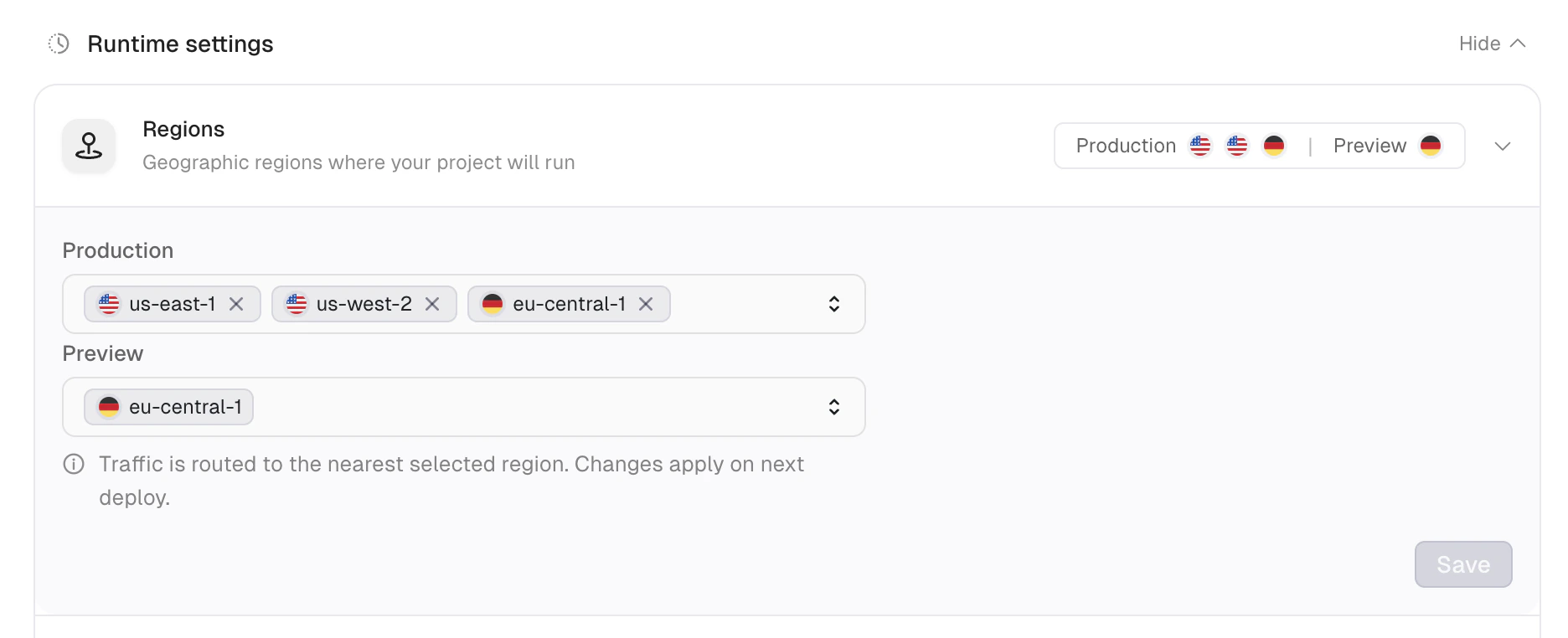
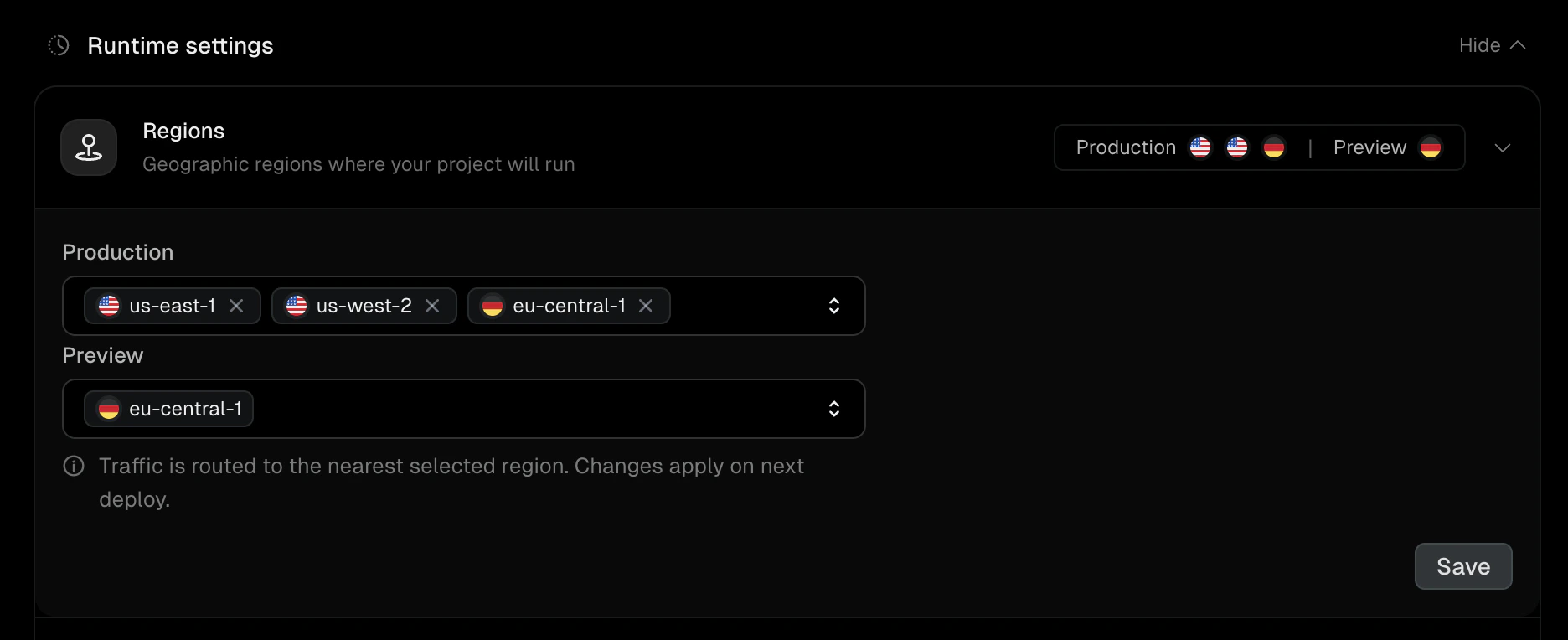
Select regions for your app in the **Settings** tab under **Runtime settings > Regions**. You must select at least one region.
Production and preview environments can use different region configurations. For example, you might deploy production to all three regions for global coverage while keeping preview deployments in a single region to reduce cost.
 ## Instances per region
Each region runs one or more instances of your app. Configure the autoscaling range in **Settings > Runtime settings > Instances** as a minimum and maximum replica count. The default is one instance per region (`1 – 1`).
When the minimum and maximum differ, Unkey scales each region between those bounds based on CPU load. Setting both values to the same number pins the instance count and disables autoscaling.
Running multiple instances in a region provides redundancy. If one instance fails, traffic routes to the remaining healthy instances.
During the beta, the maximum is four instances per region. Contact [support@unkey.com](mailto:support@unkey.com) if you need more.
## Traffic routing
Unkey routes incoming requests to the nearest healthy region based on the client's location. If a region becomes unhealthy (all instances failing health checks), traffic reroutes to the next nearest region.
## Add or remove regions
Changing your region configuration takes effect on the next deployment. Existing deployments continue running in their original regions until replaced.
To update regions:
1. Open your project's **Settings** tab.
2. Under **Runtime settings**, add or remove regions.
3. Save the changes.
4. Trigger a new deployment to apply the updated configuration.
## Next steps
Configure instances, CPU, memory, storage, and other runtime settings
Serve your app from your own domain
## Instances per region
Each region runs one or more instances of your app. Configure the autoscaling range in **Settings > Runtime settings > Instances** as a minimum and maximum replica count. The default is one instance per region (`1 – 1`).
When the minimum and maximum differ, Unkey scales each region between those bounds based on CPU load. Setting both values to the same number pins the instance count and disables autoscaling.
Running multiple instances in a region provides redundancy. If one instance fails, traffic routes to the remaining healthy instances.
During the beta, the maximum is four instances per region. Contact [support@unkey.com](mailto:support@unkey.com) if you need more.
## Traffic routing
Unkey routes incoming requests to the nearest healthy region based on the client's location. If a region becomes unhealthy (all instances failing health checks), traffic reroutes to the next nearest region.
## Add or remove regions
Changing your region configuration takes effect on the next deployment. Existing deployments continue running in their original regions until replaced.
To update regions:
1. Open your project's **Settings** tab.
2. Under **Runtime settings**, add or remove regions.
3. Save the changes.
4. Trigger a new deployment to apply the updated configuration.
## Next steps
Configure instances, CPU, memory, storage, and other runtime settings
Serve your app from your own domain