> ## Documentation Index
> Fetch the complete documentation index at: https://unkey.com/docs/llms.txt
> Use this file to discover all available pages before exploring further.
# Variables
> Manage encrypted environment variables in Unkey. Inject key-value pairs into your app at runtime, scoped by environment for each deploy.
Unkey Deploy is in public beta. To try it, open the product switcher in the
top-left of the dashboard and select **Deploy**. During beta, deployed
resources are free. We're eager for feedback, so let us know what you think
on [Discord](https://unkey.com/discord), [X](https://x.com/unkeydev), or
email [support@unkey.com](mailto:support@unkey.com).
Every variable is **encrypted before it is written to the database**, Unkey never stores unencrypted values. Variables are injected into your application as environment variables at runtime. Each variable is scoped to a specific [environment](/environments/overview), so production and preview can have different values.
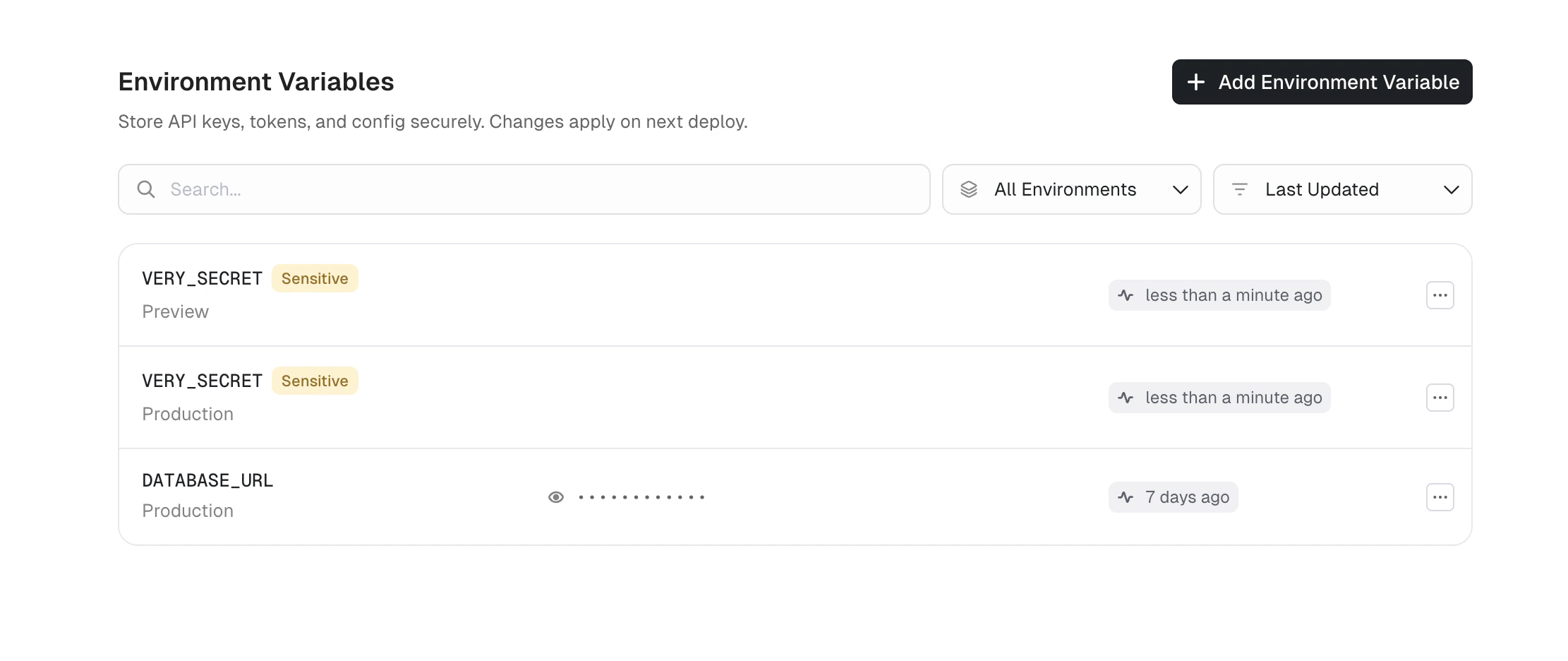
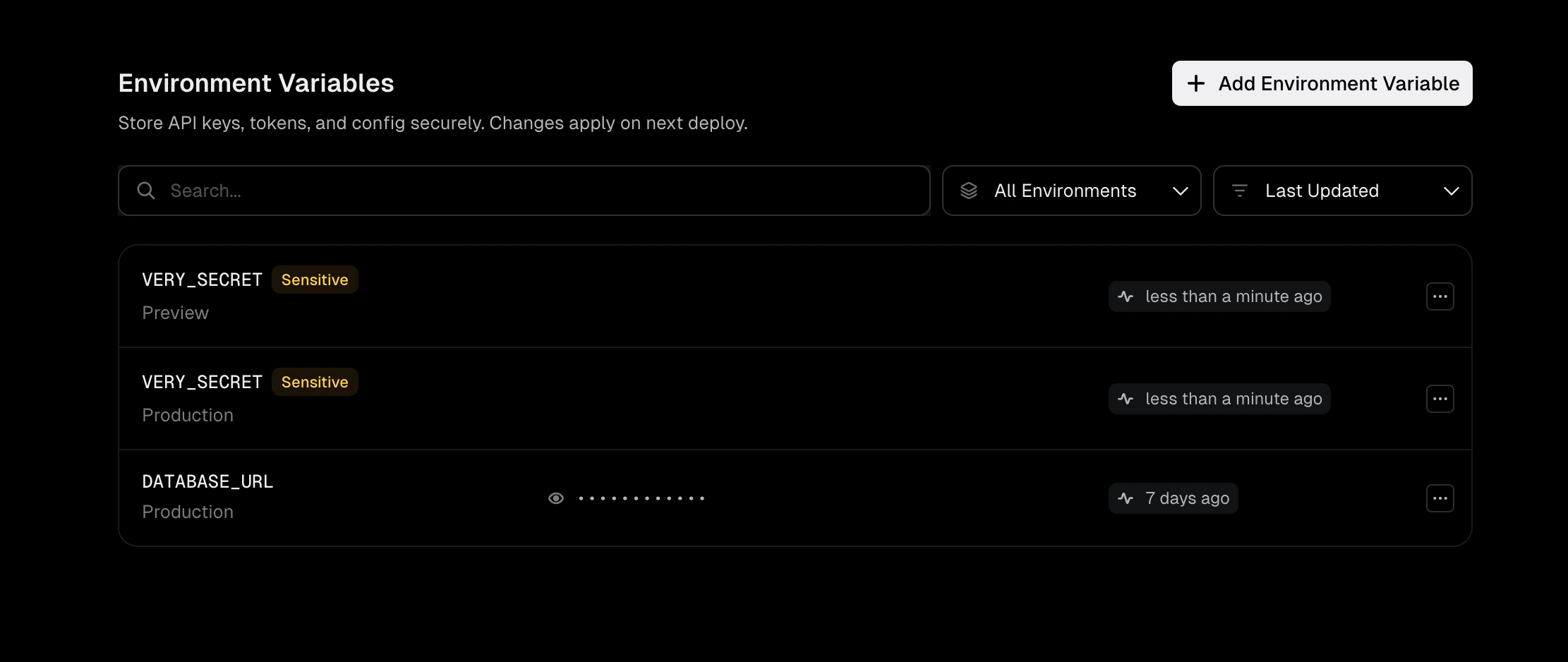
You manage variables from the **Environment Variables** tab in your project dashboard.
 ## Create variables
1. Open your project and go to the **Environment Variables** tab.
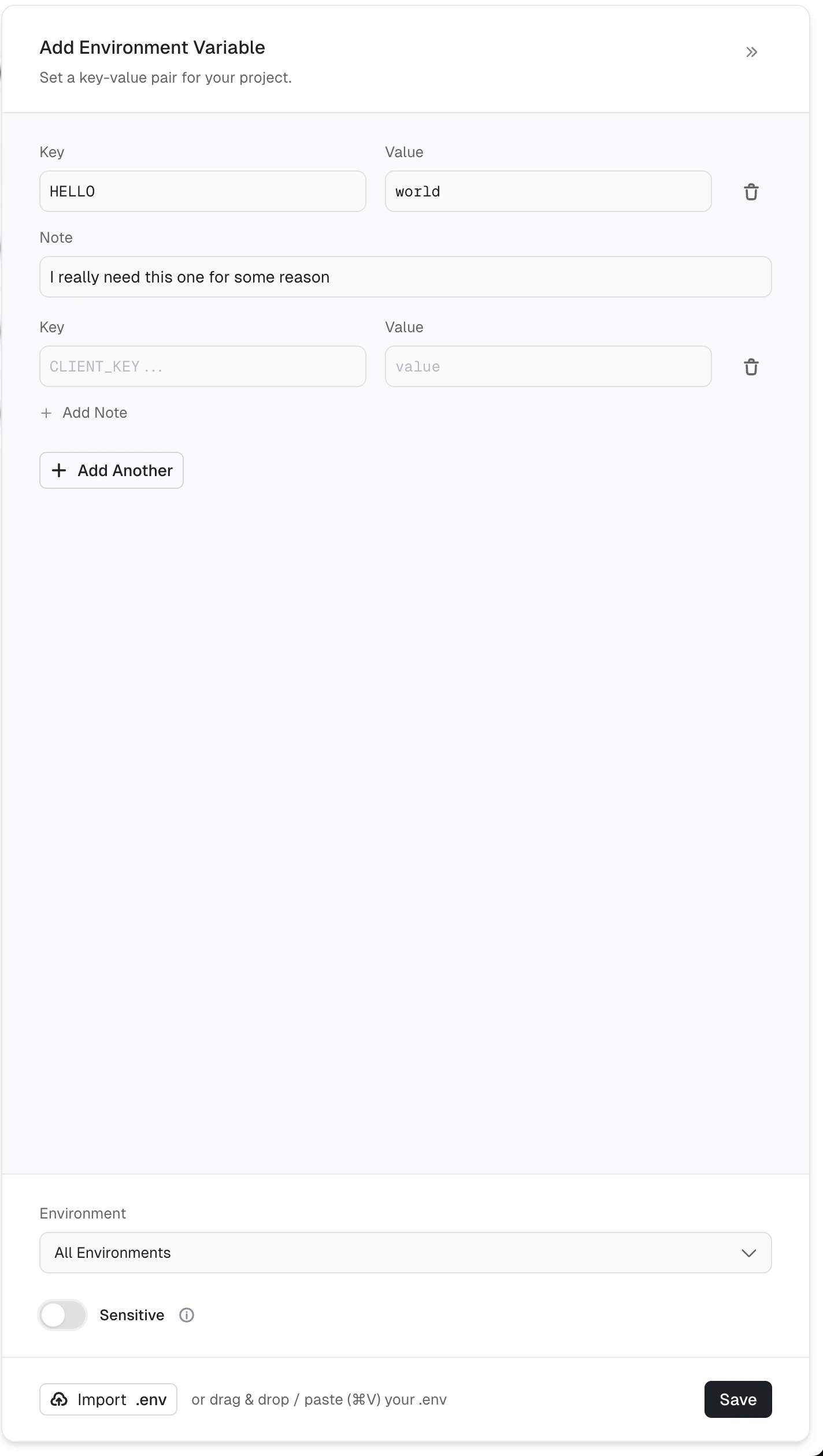
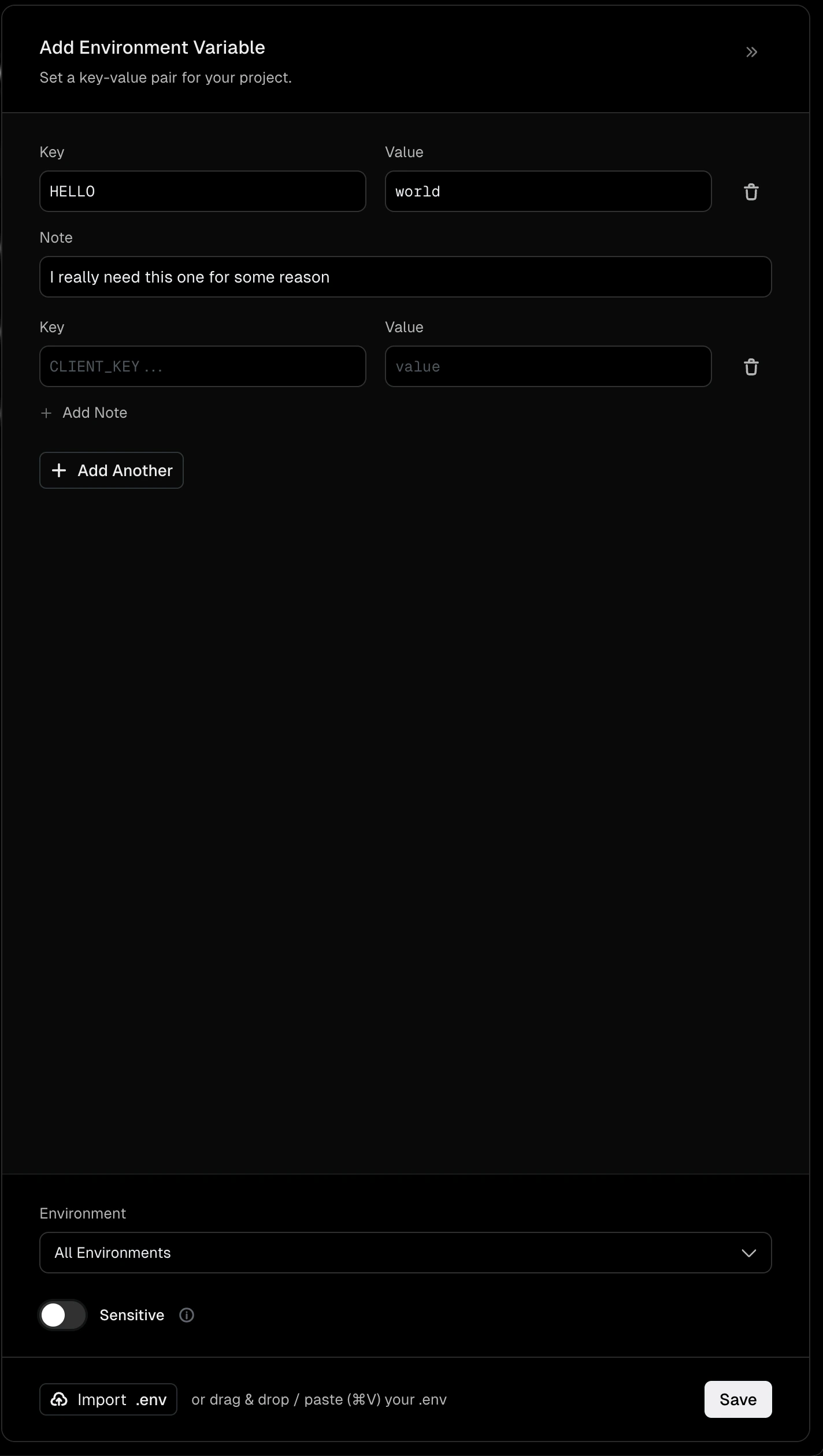
2. Click **Add Environment Variable** to open the slide panel.
3. Enter one or more key-value pairs.
4. Select the target environment, or choose **All Environments** to apply the variable everywhere.
5. Toggle **Sensitive** if the value should be write-only.
6. Click **Save**.
## Create variables
1. Open your project and go to the **Environment Variables** tab.
2. Click **Add Environment Variable** to open the slide panel.
3. Enter one or more key-value pairs.
4. Select the target environment, or choose **All Environments** to apply the variable everywhere.
5. Toggle **Sensitive** if the value should be write-only.
6. Click **Save**.
 ### Bulk import
You can add multiple variables at once:
* **Paste**: paste content in `KEY=value` format (one per line) directly into the form. Unkey parses each line into a separate entry.
* **Drag and drop**: drag a `.env` file onto the form to import all variables from the file.
* **File picker**: click the import button and select a `.env` file from your file system.
### Form persistence
If you close the panel or navigate away before saving, Unkey preserves your unsaved entries for the current session. When you reopen the panel, your draft is restored so you can pick up where you left off. A leave-prevention prompt also appears if you attempt to refresh or close the browser tab while the panel is open.
## Search, filter, and sort
The toolbar above the variable list lets you:
* **Search**: filter variables by name using the search field.
* **Filter by environment**: show only variables for a specific environment, or select **All Environments** to see everything.
* **Sort**: order variables by **Last Updated** or **Name A-Z**.
## Edit and delete variables
Click any variable row to open the inline editor. You can update the key, value, or note. Use the action menu on each row to delete a variable.
### Bulk import
You can add multiple variables at once:
* **Paste**: paste content in `KEY=value` format (one per line) directly into the form. Unkey parses each line into a separate entry.
* **Drag and drop**: drag a `.env` file onto the form to import all variables from the file.
* **File picker**: click the import button and select a `.env` file from your file system.
### Form persistence
If you close the panel or navigate away before saving, Unkey preserves your unsaved entries for the current session. When you reopen the panel, your draft is restored so you can pick up where you left off. A leave-prevention prompt also appears if you attempt to refresh or close the browser tab while the panel is open.
## Search, filter, and sort
The toolbar above the variable list lets you:
* **Search**: filter variables by name using the search field.
* **Filter by environment**: show only variables for a specific environment, or select **All Environments** to see everything.
* **Sort**: order variables by **Last Updated** or **Name A-Z**.
## Edit and delete variables
Click any variable row to open the inline editor. You can update the key, value, or note. Use the action menu on each row to delete a variable.
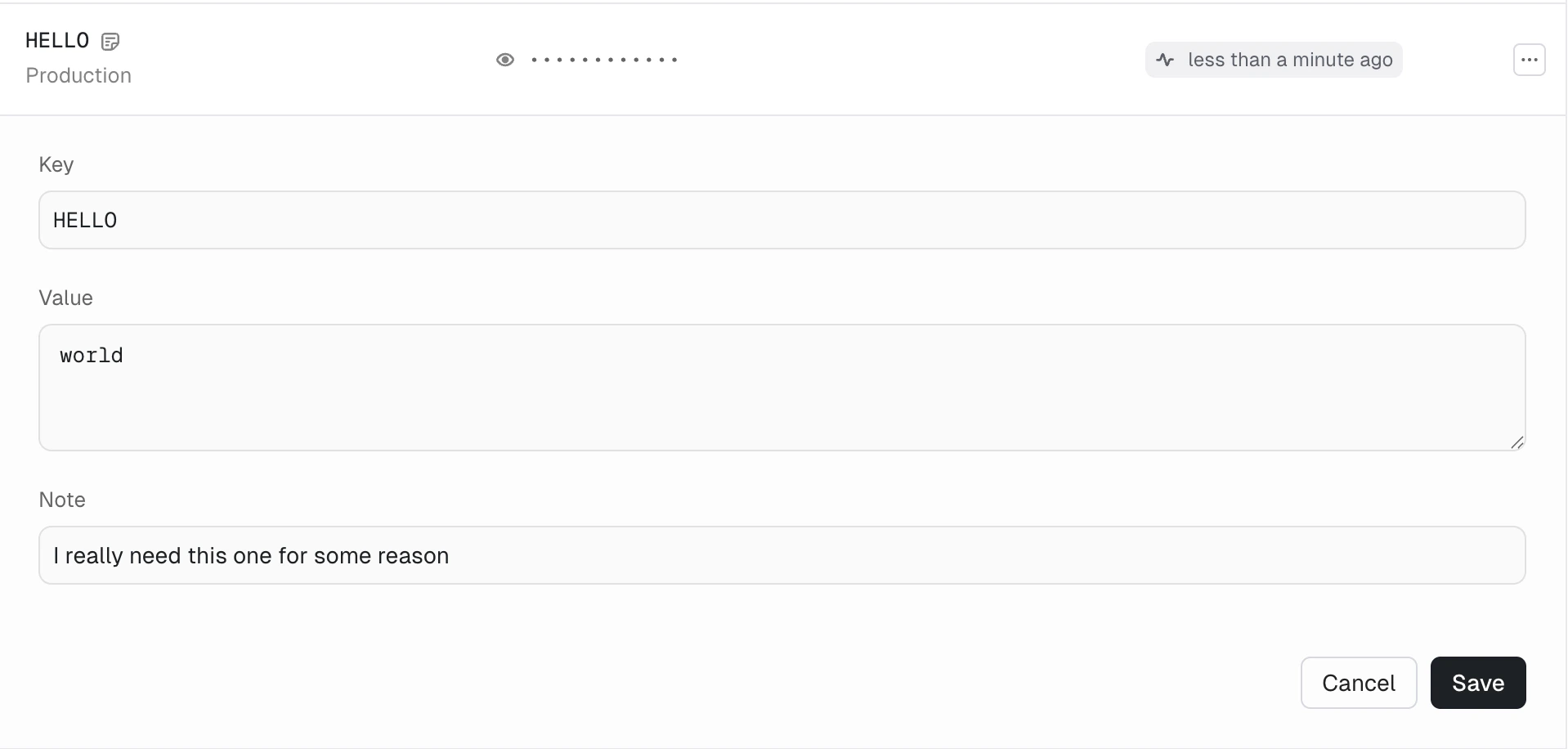
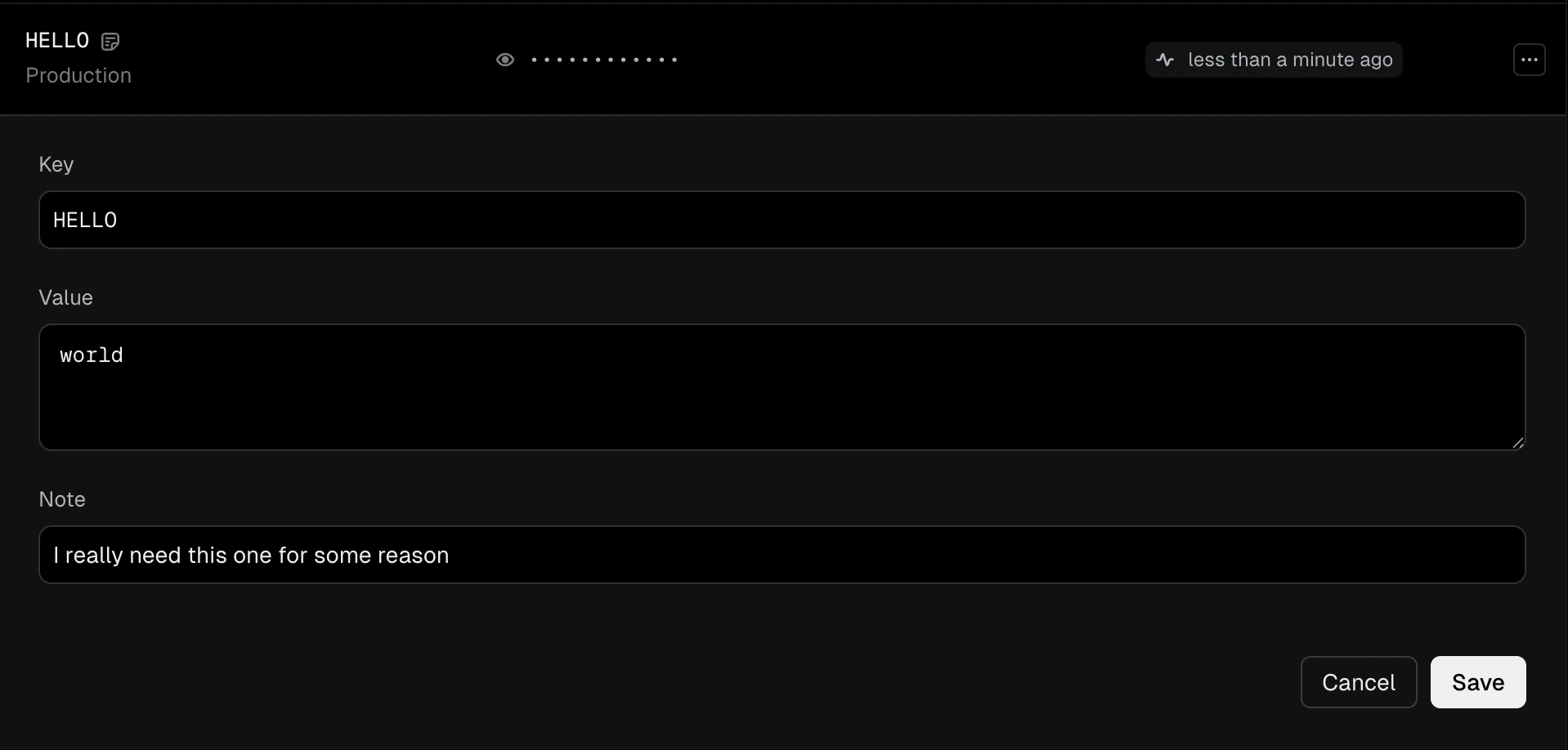 Unkey validates variable names for uniqueness within the same environment. If a variable with the same key already exists in the target environment, the form shows an error.
## Sensitive variables
All variables are encrypted before they are stored, the **Sensitive** toggle does not change how a variable is encrypted. It only controls whether the value can be read back in the dashboard after saving.
When **Sensitive** is enabled, the value becomes write-only: you can update or delete it, but you cannot reveal it again. Use this for API keys, database passwords, and tokens. Leave it off for non-sensitive configuration like feature flags, service URLs, and port numbers where being able to check the current value is useful.
## Environment scoping
Variables are tied to a specific environment. This lets you use different configuration for production and preview without managing separate config files:
| Variable | Production | Preview |
| --------------- | --------------------------------- | -------------------------------- |
| `DATABASE_URL` | `postgres://prod-db.acme.com/api` | `postgres://dev-db.acme.com/api` |
| `LOG_LEVEL` | `warn` | `debug` |
| `FEATURE_V2_UI` | `false` | `true` |
When adding a variable, you can select **All Environments** to set the same key-value pair across every environment in one step.
## Precedence over image defaults
Variables configured in Unkey take precedence over any environment variables set in your Dockerfile with `ENV`. For example, if your Dockerfile sets `ENV PORT=8080` but you configure `PORT=8081` in Unkey, your application receives `8081` at runtime. This applies to all variables, not just `PORT`, Unkey's runtime values always override image defaults.
## System variables
In addition to variables you define, Unkey automatically injects several environment variables into every running instance. These provide context about the current deployment and runtime configuration.
| Variable | Description |
| --------------------------- | ----------------------------------------------------------------------------------------------------------------------------- |
| `PORT` | The [port](/platform/apps/settings#port) your app should listen on |
| `UNKEY_DEPLOYMENT_ID` | Unique identifier for the current deployment |
| `UNKEY_ENVIRONMENT_SLUG` | Slug of the environment (e.g., `production`, `staging`) |
| `UNKEY_REGION` | Region where the instance is running |
| `UNKEY_INSTANCE_ID` | Unique identifier for the specific running instance |
| `UNKEY_GIT_COMMIT_SHA` | Git commit SHA that triggered the deployment |
| `UNKEY_GIT_BRANCH` | Git branch that triggered the deployment |
| `UNKEY_GIT_REPO` | Full repository name (e.g., `org/repo`) |
| `UNKEY_GIT_COMMIT_MESSAGE` | Commit message of the deployed commit |
| `UNKEY_EPHEMERAL_DISK_PATH` | Mount path for [ephemeral storage](/platform/apps/settings#ephemeral-storage) (`/data`). Only set when storage is configured. |
Git-related variables are populated when your deployment is connected to a GitHub repository. You cannot override system variables, if you create a variable with the same name, the system value takes precedence.
## Variables and deployments
Deployments are immutable. Variable changes don't affect running deployments. To apply updated variables, trigger a new deployment. A redeploy banner appears at the top of the page after you make changes as a reminder.
## Next steps
How environments isolate configuration and deployments
Full reference for build, runtime, and variable settings
Unkey validates variable names for uniqueness within the same environment. If a variable with the same key already exists in the target environment, the form shows an error.
## Sensitive variables
All variables are encrypted before they are stored, the **Sensitive** toggle does not change how a variable is encrypted. It only controls whether the value can be read back in the dashboard after saving.
When **Sensitive** is enabled, the value becomes write-only: you can update or delete it, but you cannot reveal it again. Use this for API keys, database passwords, and tokens. Leave it off for non-sensitive configuration like feature flags, service URLs, and port numbers where being able to check the current value is useful.
## Environment scoping
Variables are tied to a specific environment. This lets you use different configuration for production and preview without managing separate config files:
| Variable | Production | Preview |
| --------------- | --------------------------------- | -------------------------------- |
| `DATABASE_URL` | `postgres://prod-db.acme.com/api` | `postgres://dev-db.acme.com/api` |
| `LOG_LEVEL` | `warn` | `debug` |
| `FEATURE_V2_UI` | `false` | `true` |
When adding a variable, you can select **All Environments** to set the same key-value pair across every environment in one step.
## Precedence over image defaults
Variables configured in Unkey take precedence over any environment variables set in your Dockerfile with `ENV`. For example, if your Dockerfile sets `ENV PORT=8080` but you configure `PORT=8081` in Unkey, your application receives `8081` at runtime. This applies to all variables, not just `PORT`, Unkey's runtime values always override image defaults.
## System variables
In addition to variables you define, Unkey automatically injects several environment variables into every running instance. These provide context about the current deployment and runtime configuration.
| Variable | Description |
| --------------------------- | ----------------------------------------------------------------------------------------------------------------------------- |
| `PORT` | The [port](/platform/apps/settings#port) your app should listen on |
| `UNKEY_DEPLOYMENT_ID` | Unique identifier for the current deployment |
| `UNKEY_ENVIRONMENT_SLUG` | Slug of the environment (e.g., `production`, `staging`) |
| `UNKEY_REGION` | Region where the instance is running |
| `UNKEY_INSTANCE_ID` | Unique identifier for the specific running instance |
| `UNKEY_GIT_COMMIT_SHA` | Git commit SHA that triggered the deployment |
| `UNKEY_GIT_BRANCH` | Git branch that triggered the deployment |
| `UNKEY_GIT_REPO` | Full repository name (e.g., `org/repo`) |
| `UNKEY_GIT_COMMIT_MESSAGE` | Commit message of the deployed commit |
| `UNKEY_EPHEMERAL_DISK_PATH` | Mount path for [ephemeral storage](/platform/apps/settings#ephemeral-storage) (`/data`). Only set when storage is configured. |
Git-related variables are populated when your deployment is connected to a GitHub repository. You cannot override system variables, if you create a variable with the same name, the system value takes precedence.
## Variables and deployments
Deployments are immutable. Variable changes don't affect running deployments. To apply updated variables, trigger a new deployment. A redeploy banner appears at the top of the page after you make changes as a reminder.
## Next steps
How environments isolate configuration and deployments
Full reference for build, runtime, and variable settings