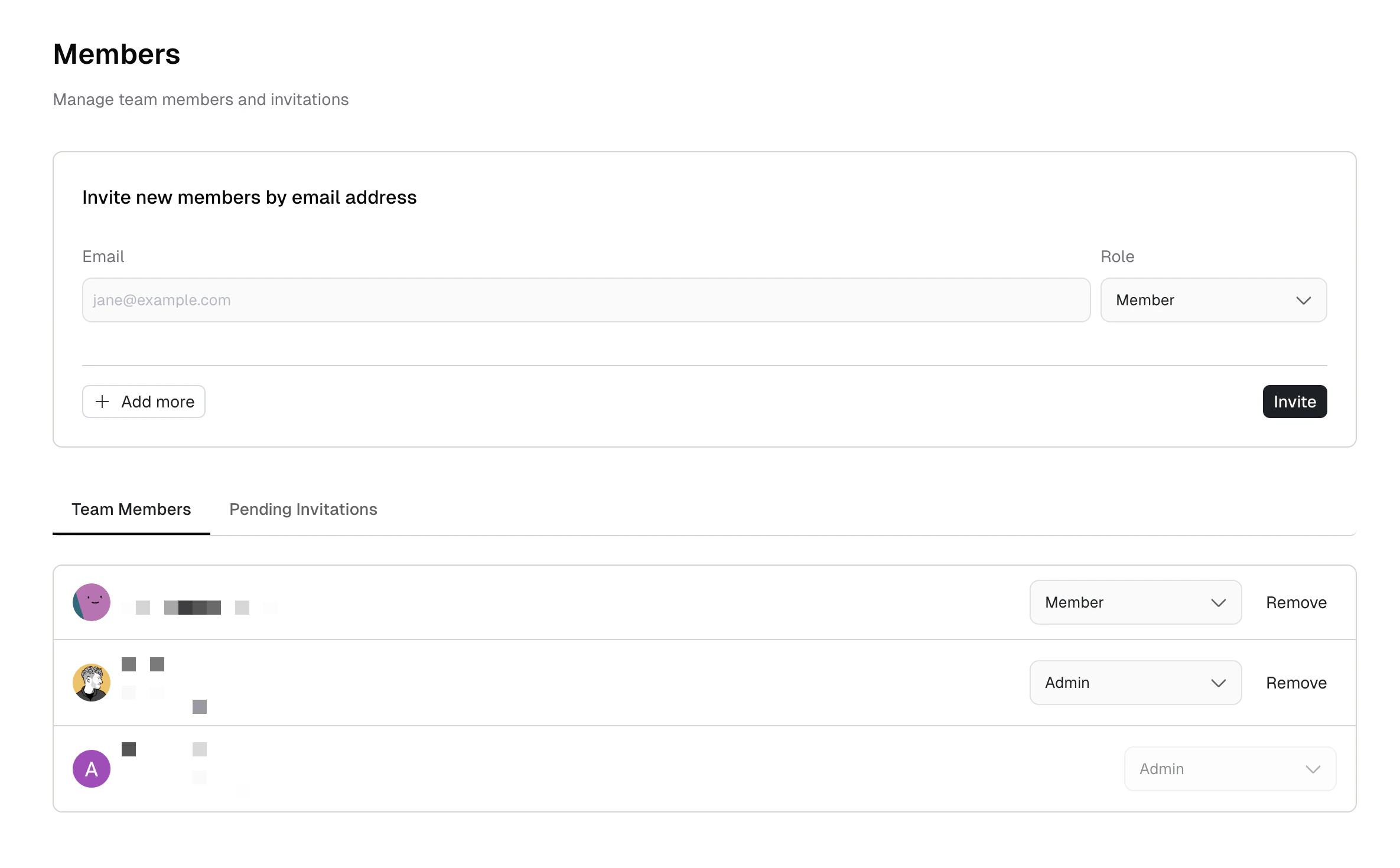
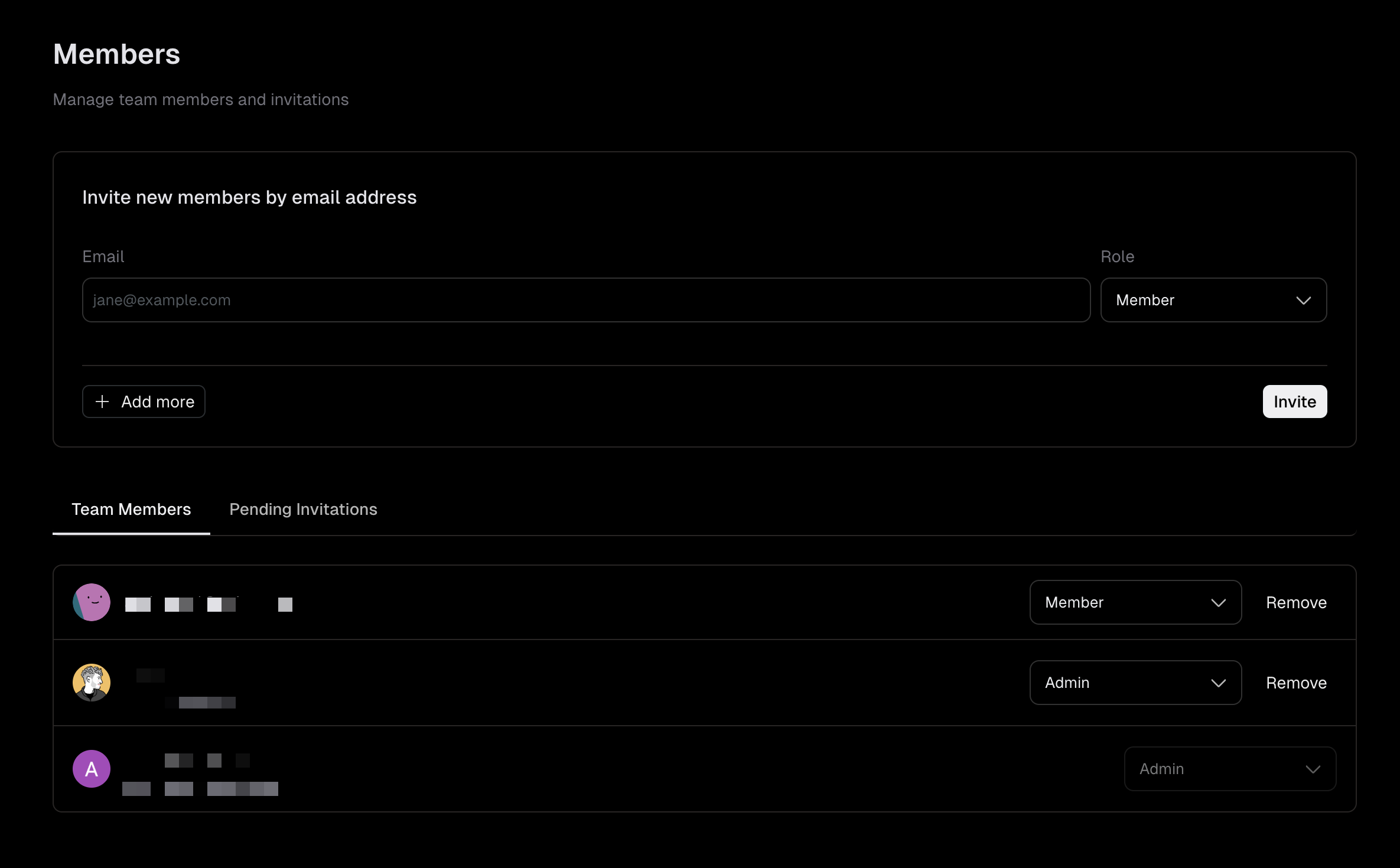
Team collaboration lets multiple people work in the same workspace.
Team members require a paid plan. Workspaces on the Free plan are limited to a single user. Upgrade your plan to invite team members. Invite team members
- Navigate to Settings > Team.
- Enter one or more email addresses in the invite form.
- Click Invite.
Each invitee receives an email with an invitation link. Invitations expire after 24 hours. If an invitation expires, send a new one.
Manage pending invitations
- Navigate to Settings > Team.
- Select the Pending Invitations tab.
- To revoke an invitation, click the revoke button next to the invitation.
The tab shows all pending and expired invitations. Only pending invitations can be revoked.
Remove a team member
- Navigate to Settings > Team.
- Find the member in the Team Members tab.
- Click Remove next to their name.
You cannot remove yourself. If you need to leave a workspace, ask another admin to remove you.
Removing a member revokes their access immediately. They lose access to all workspace resources.