

You need a root key with the permissions listed on this page. Create one in the dashboard under Settings > Root Keys, and pass it as
Authorization: Bearer <root key>. See Permission reference for every permission.keys.updateKey and need api.*.update_key or api.<api_id>.update_key. Deleting uses keys.deleteKey and needs api.*.delete_key or api.<api_id>.delete_key. See Root key permissions.
Disable or enable a key
enabled on keys.updateKey:
boolean
false suspends the key and true restores it. Omitting the field leaves the state unchanged.valid: false with code: DISABLED, and it doesn’t use up rate limits or credits.
"enabled": true to restore the key with all its settings as they were. You can also create a key disabled, with "enabled": false on keys.createKey, for example when access needs approval first.
Delete a key
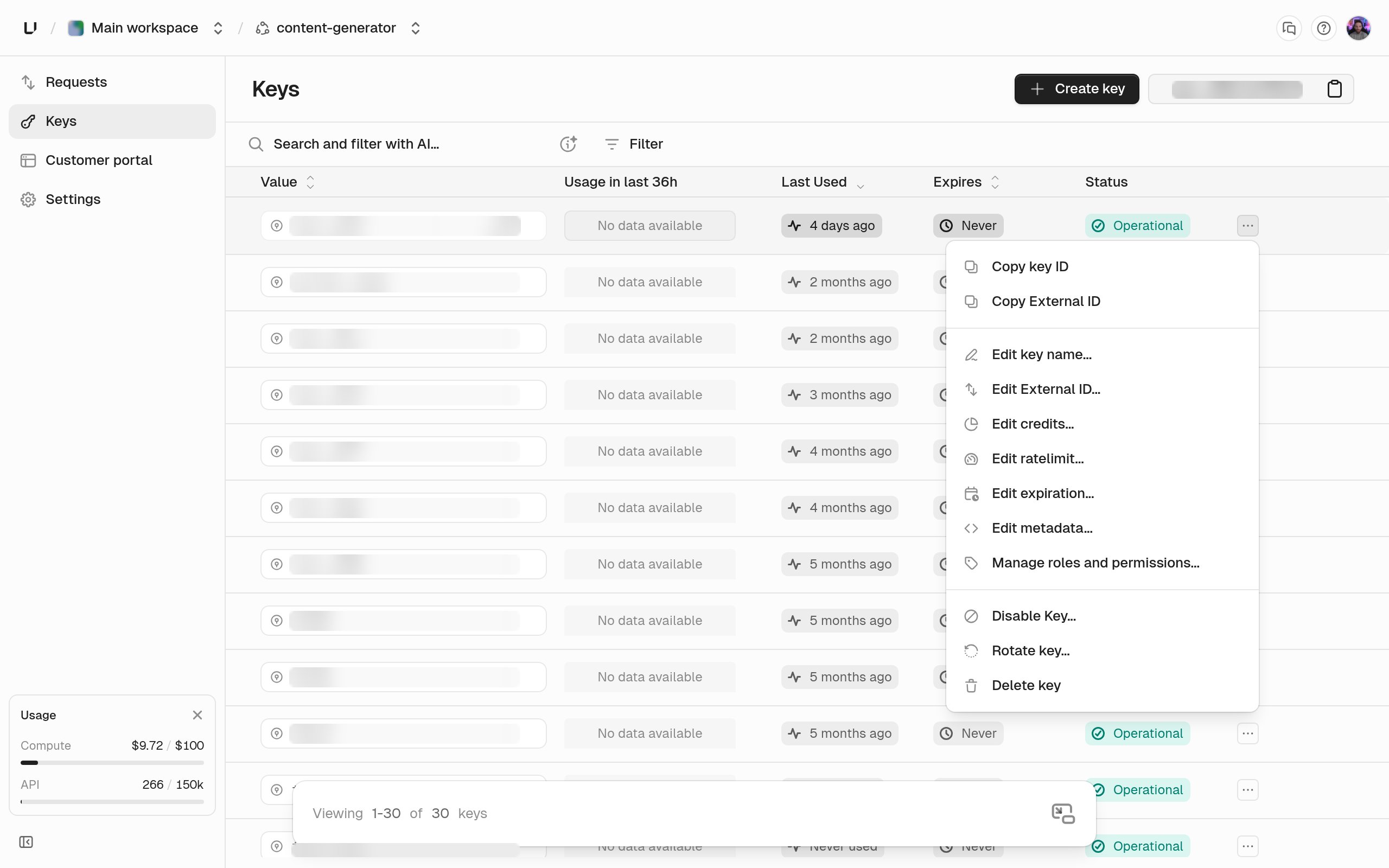
In the dashboard, choose Delete key from the same actions menu. From the API, callkeys.deleteKey:
string
required
The key to delete.
boolean
default:"false"
false, the default, deletes the key but keeps a record of it for your audit trail. true erases it completely, so the same key string could be issued again later. Use true for regulatory erasure requests. The dashboard always uses the default.code: NOT_FOUND and the key disappears from listings. The key.delete audit log event says whether it was permanent. Deletion can’t be undone.
How quickly it takes effect
A disable, enable, or delete takes about 10 seconds to reach verification, and a few verifications just after that can still see the old state. You can’t speed it up. If a key must stop working the instant you say so, your own service has to stop accepting it too.Revoke everything a user owns
To find the keys linked to an identity, filterapis.listKeys by externalId, then delete them one by one.
revoke-user-keys.ts