

apis.createApi.
When to create more than one
One keyspace is enough when all your keys share the same defaults and you tell them apart by metadata or identity. Create more when you want a hard boundary: different key prefixes per product, separate analytics per such as production and staging, or root keys that can only touch one product’s keys. Root key permissions such asapi.<api_id>.create_key can be limited to one keyspace.
Two identifiers
Each keyspace has two IDs, used in different places.
Both appear on the keyspace’s Settings page with a copy button.
Settings that apply to every key
These settings apply to every key in the keyspace. Keyspace settings covers each one.Create a keyspace
You need a root key with the permissions listed on this page. Create one under Root Keys in the dashboard sidebar. See Permission reference for every permission.
From the dashboard
Open Keyspaces (APIs) in the sidebar, click Create keyspace, and enter a name. Both IDs are on the new keyspace’s settings page.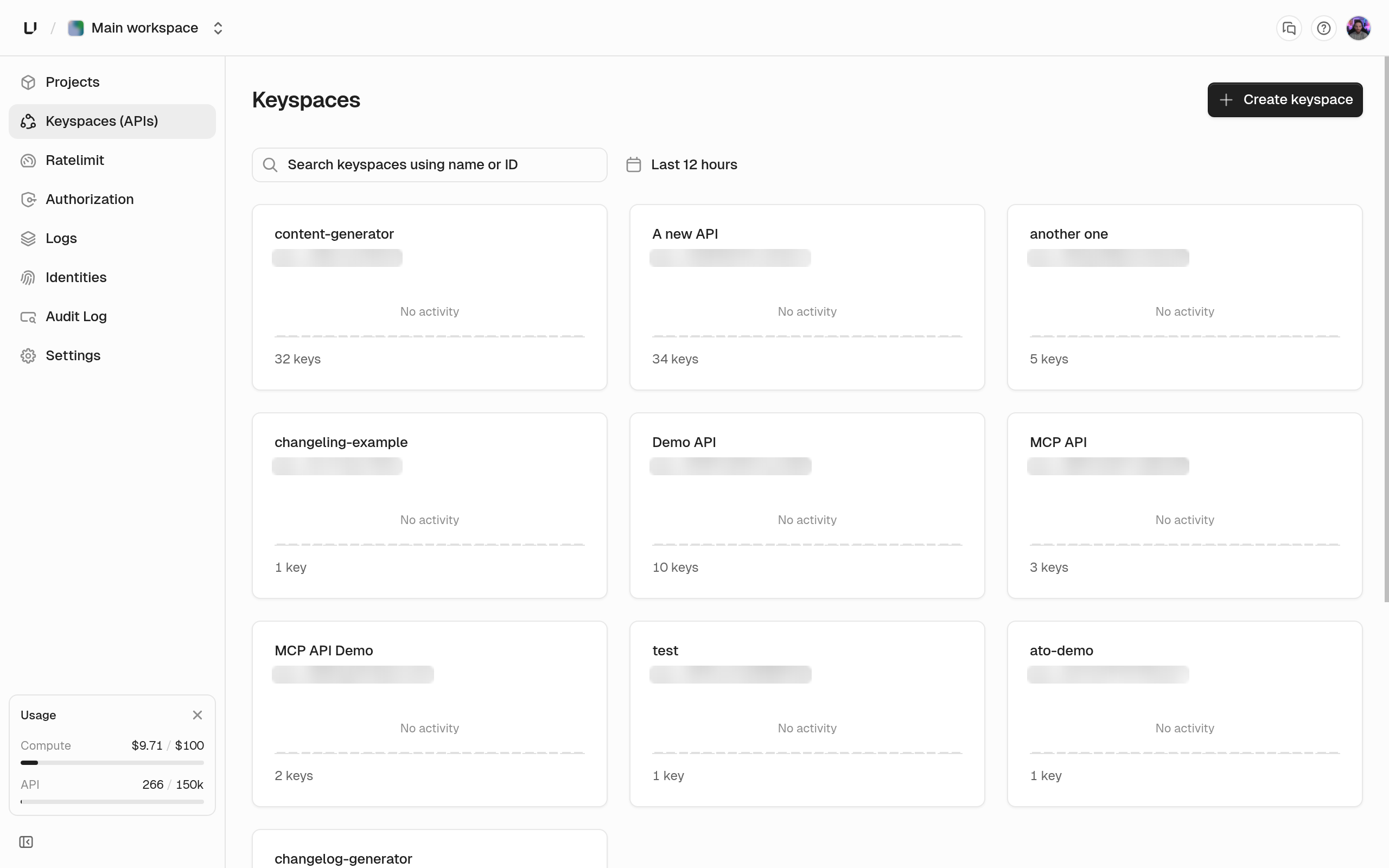
Delete a keyspace
Deleting a keyspace makes every key in it verify asNOT_FOUND. In the dashboard, use the Delete Keyspace card in the settings danger zone and type the keyspace name and the confirmation phrase. From the API, call apis.deleteApi with the apiId. It needs api.*.delete_api or api.<api_id>.delete_api.
If delete protection is on, both fail with HTTP 412 err:unkey:application:protected_resource. Turn protection off on the settings page first. See Delete protection.